Documentation · People and follow-up
The Web
Ask "who are you walking with?" once, with a link and a QR code. People who choose to show see who walks with whom in their groups and the whole church, with no counts and no ranking.
For: PastorAdminOwner
See this screen in the demo church
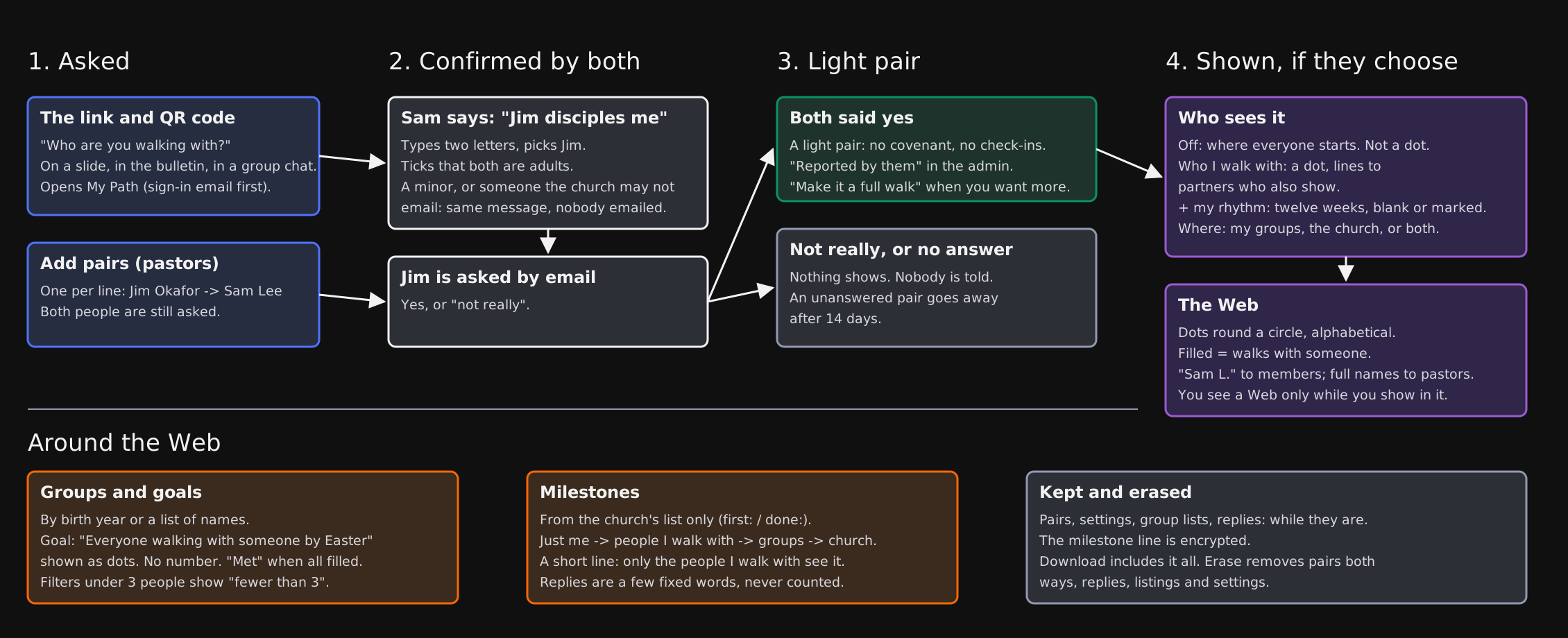
The Web answers one question your people already know the answer to: who are you walking with, and who is walking with you? Each person can name the people they disciple and the people who disciple them. Once both of them say yes, the pair shows as a line between two dots.
It uses what Walking with already set up, so it only works once Walking with is on. Once it is on, The Web appears under People for pastors, and the tour stops there. Everything in it is opt-in. Someone who never turns the Web on never appears in it, and nobody is ranked, totalled or sorted by how much they do.
Asking the question
Open Walking with in the admin. Under Who walks with whom you'll find:
- A link and a QR code. Put them on a slide, in the bulletin or in a group chat. The link opens My Path. Someone not signed in gets a sign-in email first, then lands on "Who you walk with".
- Add pairs, for when you already know. Type one pair per line, the one discipling first, such as
Jim Okafor -> Sam Lee. Both people still get asked, and nothing shows until both say yes. - Both of them with you? Pick the pair and choose They’re here: show codes. Each person scans their own QR code with their phone’s camera and says yes, and your screen moves on by itself. A code names nobody, works for 30 minutes, and New code stops the old one. No email address is needed. Email them instead asks someone who has left. Pairs you added that are waiting for a yes are listed under Add pairs, with Show codes and Cancel this pair.
In My Path, a person types two letters of a name, picks the right person, and chooses "I disciple them" or "They disciple me". They check that both of them are adults. The other person gets an email asking whether it is true.
- Both say yes: the pair is confirmed. It is marked Reported by them in the admin, so you can tell it apart from a walk you set up.
- The other person says "not really", or never answers: nothing shows and nobody is told. An unanswered pair goes away after 14 days.
- Someone your church may not email, or a minor: the person reporting sees the same message as everyone else, and nobody is emailed.
A reported pair is light: no commitment, no check-ins and no seasons. When you want more for them, Make it a full walk opens the usual Walking with ask, already filled in.
What people choose
In My Path, under Walking together, each person chooses whether they show in the Web and how much:
| Setting | What it shows |
|---|---|
| Off (where everyone starts) | Nothing. They are not a dot anywhere. |
| Who I walk with | Their dot, filled when they walk with someone, and lines to partners who also show. |
| Who I walk with, and my rhythm | All of that, plus 12 weeks of dots: a week they met someone they walk with, or shared a milestone. |
They also choose where: their groups, the whole church, or both. A person sees a Web only while they show in it themselves. Turning it off takes them out at once.
Names show as first name and last initial ("Sam L."). Pastors see full names.
A separate box, Also show me on cards my church shares outside EmmauOS, decides whether they can appear on a group card shared by link or on your website. It starts unticked for everyone.
Groups and goals
Under The Web in the admin, make a group for any slice of the church: Young Adults, a youth leaders' team, a home group. A group is either:
- By age, such as born 1999 to 2007, and optionally men or women. Pick the years from the calendar. Birth years and gender decide who is in it but are never shown to anyone in it. Gender comes from Planning Center, so a men's or women's group leaves out anyone Planning Center has no gender for.
- A list of people. Type two letters of a name and pick the person. Each person shows as a chip you can remove.
Filling a list from somewhere
Add from… fills a list in one go from:
| Source | Who comes in |
|---|---|
| Check-ins | Everyone checked in to a Check-Ins event in the last month, 3, 6 or 12 months. For example, RockPoint Youth in the last 6 months. |
| Team or ministry | Everyone on a serving team, or in a ministry: people placed there in EmmauOS, and the people on its linked Planning Center teams and groups. |
| PCO group | Everyone in a Planning Center group, such as Paul and Sandy's life group. |
The people come in as chips, so you can take anyone out or add someone before you save. Only people already in EmmauOS can be added, and the Web is for adults, so anyone under 18 is left out. A note after each import says how many were left out and why.
A filled list is a snapshot: it doesn't change when the team or the group changes. To catch up, open the group and press the source's name next to Add from…. That adds anyone new and never takes anyone out, so the changes you made by hand stay. Check-ins and Planning Center groups need Planning Center connected with Check-Ins and Groups access.
A group can have a shared goal, such as "Everyone walking with someone by Easter", with an optional date to pick from the calendar. The goal shows as a row of dots, one per person showing, filled when they walk with someone. There is no number and no percentage. When every dot is filled, it says Met.
The admin page also filters by age band, pathway stage and Planning Center group. A filter that leaves fewer than 3 people shows "fewer than 3" and nothing else, so no picture points at one person.
Milestones
Milestones are small, intentional steps worth celebrating: praying out loud for the first time, finishing a reading plan, a week's fast. Your church keeps the list under The Web → Milestones, one per line, starting with first: or done:. People can only add milestones from your list. There is no free-text milestone, so nobody posts something deep or painful by accident.
When adding one, a person chooses who sees it:
- Just me, where every milestone starts.
- The people I walk with.
- My groups, or the whole church, if they show there.
They can add one short line, up to 200 characters, but only the people they walk with ever see it. Others can reply with one of a few fixed words, like "Praying for you" or "So glad". Replies are never counted. Narrowing who sees a milestone removes the replies from people who no longer can.
A finished book or resource can be shared the same way, from beside I finished this in My Path.
If someone drops a reading practice from their rule of life, EmmauOS offers to mark "Finished a Bible reading plan" for them. It never adds it on its own.
What is kept, and what goes
- Pairs, Web settings, group lists and replies are kept as long as the person is. The short line on a milestone is encrypted.
- Download my results in My Path includes everything the Web holds about them.
- Erase removes their pairs both ways, their replies, their group listings and their settings. Their milestones go with their other markers.
- Group goals and the milestone list belong to the church and stay when someone leaves.
Sharing outside EmmauOS
A pastor can share one group's goal and recent steps as a link for a group chat, or as a box on your website. It shows first names only, and only for people who said yes. See Share a group's card.
Things to know
- The Web is for adults. Anyone your records mark as under 18 can't be reported, and doesn't show.
- Dots go around a circle in alphabetical order, so where a dot sits says nothing about the person.
- A dot is filled even when that person's partner chose not to show. The line between them is simply not drawn.
- Rhythm is blank or marked. A blank week is never shown as missed.
Try it on your own church
Your assessment link works the minute you sign up. The first 50 people are free, and there is no card to enter.
This page as Markdown, for notes or an AI assistant.