Documentation · Getting started
Set up with your AI
Set up all of EmmauOS by talking to Claude, ChatGPT or another assistant. Copy one prompt, paste it, sign in, and it interviews you area by area, from your welcome line to your pathway, roles, staff and first discipleship pairs.
For: LeaderPastorAdminOwner
See this screen in the demo church
As soon as you've signed up, the first setup screen offers Copy for Claude, with ChatGPT, Claude Code, Cursor and any other assistant in the menu beside it. Every later step has the same button in the left column, so you can switch to your AI at any point.
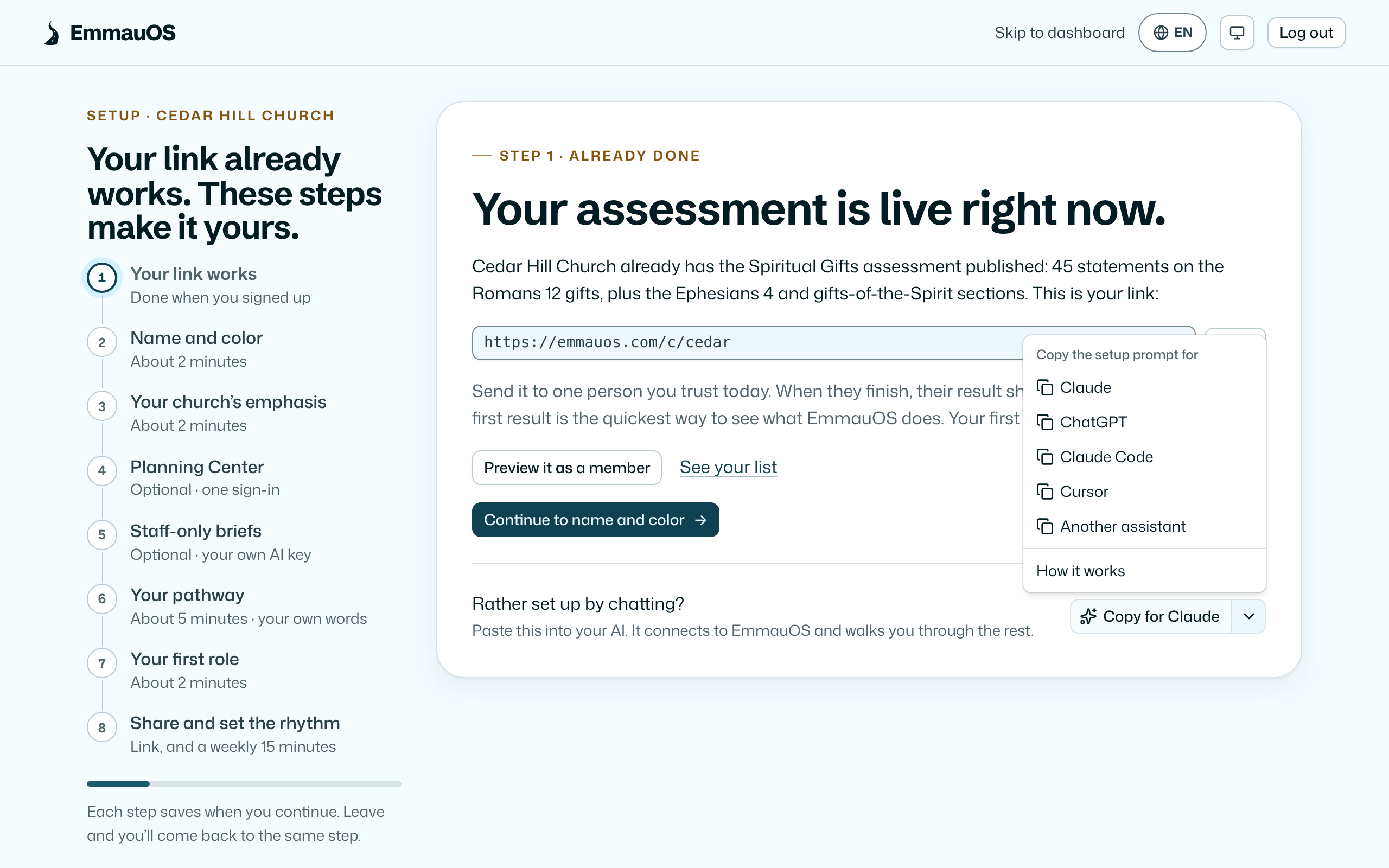
What you copy
One prompt, written for the assistant you picked. It holds:
- how to connect EmmauOS in that assistant, with EmmauOS's server address (
/mcp), - how to interview you: one area at a time, in your words, showing you what it will save before it saves,
- how to read your own documents, like a pathway or class notes in Google Drive,
- links to the screens for the few things no tool does: your logo and fonts, signing in to Planning Center and your own AI key,
- links to these docs as Markdown, starting with the index for agents, so the assistant can read how EmmauOS works.
It holds no password, key or token. Paste it into a new chat.
The interview
Once it's connected, the assistant asks EmmauOS (get-setup) what is set up and what is left, and talks you through each area in turn:
| Area | What it asks |
|---|---|
| Your church | Your name, city, website and the line people read before they start. |
| How you talk about gifts | Your tradition, and how the Gifts of the Spirit and Ephesians 4 should read. |
| Colors | Your accent color, light or dark. The logo and fonts are on a screen. |
| Your team | Who else should use EmmauOS, with what role, and which ministries each leader looks after. |
| Ministries and serving teams | What people can join, who leads it, and the gifts that fit. |
| Your pathway | How someone goes from first visit to leading, your tracks, and the steps and practices at each stage. |
| Classes and reading | What you point people to, and which step or role each belongs to. |
| Roles | The roles you need, who holds each now, and who is learning it. |
| People | A list or earlier results to bring in. |
| Walking with | A handful of discipleship pairs to start with, and what a walk commits to. |
| The weekly digest | When your staff meeting is. |
Skip any area and it comes back to it at the end. Ask "what's left?" any time.
Already connected, without the prompt? In Claude, open the + menu, find EmmauOS and choose Set up EmmauOS. It starts the same interview.
Already set up?
Come back any time: when EmmauOS adds something, when you start a new pathway or track, or when you just want to change something. On AI agents, press Copy for Claude (or pick your assistant) and paste it into a new chat. The assistant starts with what joined setup since you last went through it, then asks what else you'd like to add or change. Any area can be opened again, even one that's done.
Right after what's new, it points out what's set up but thin, like a role nobody holds yet, a ministry with no leader, a pathway stage with no next steps or a class not linked to any step, and offers to fill it in.
When you say you're done, it marks today as your last pass, so next time starts from what's new after today.
Your own documents
If your pathway, membership class or leader training is written down in Google Drive, tell the assistant which folder. It reads the files with its own Google Drive connector (turn it on in Claude under Settings, Connectors, or in ChatGPT under Apps & Connectors) and turns them into your pathway, your list of classes and reading with a link to each file, and drafts of what a walk commits to. EmmauOS never reads your Drive itself. Check that a linked file is shared with the people it's for.
Connecting
The first time, your assistant asks you to add EmmauOS as a connector and sign in:
| Assistant | Where |
|---|---|
| Claude | Settings, Connectors, Add custom connector. |
| ChatGPT | Settings, Apps & Connectors, Advanced settings, Developer mode, then Create, with OAuth. |
| Claude Code | It runs claude mcp add itself. Then /mcp, Authenticate. |
| Cursor | It adds EmmauOS to .cursor/mcp.json. Then Needs login in Cursor's MCP settings. |
ChatGPT, step by step
- On the first setup screen, open the menu beside Copy for Claude and choose ChatGPT, then Open ChatGPT.
- In ChatGPT, open Settings, then Apps & Connectors, then Advanced settings, and turn on Developer mode.
- Back in Apps & Connectors, press Create. Name it EmmauOS, paste
https://emmauos.com/mcpas the URL, and choose OAuth. - EmmauOS opens its sign-in. Sign in, pick your church, and press Allow.
- Start a new chat, add EmmauOS to it, and paste the prompt.
ChatGPT moves its menus from time to time. If a name above doesn't match, look for connectors or developer mode in its settings.
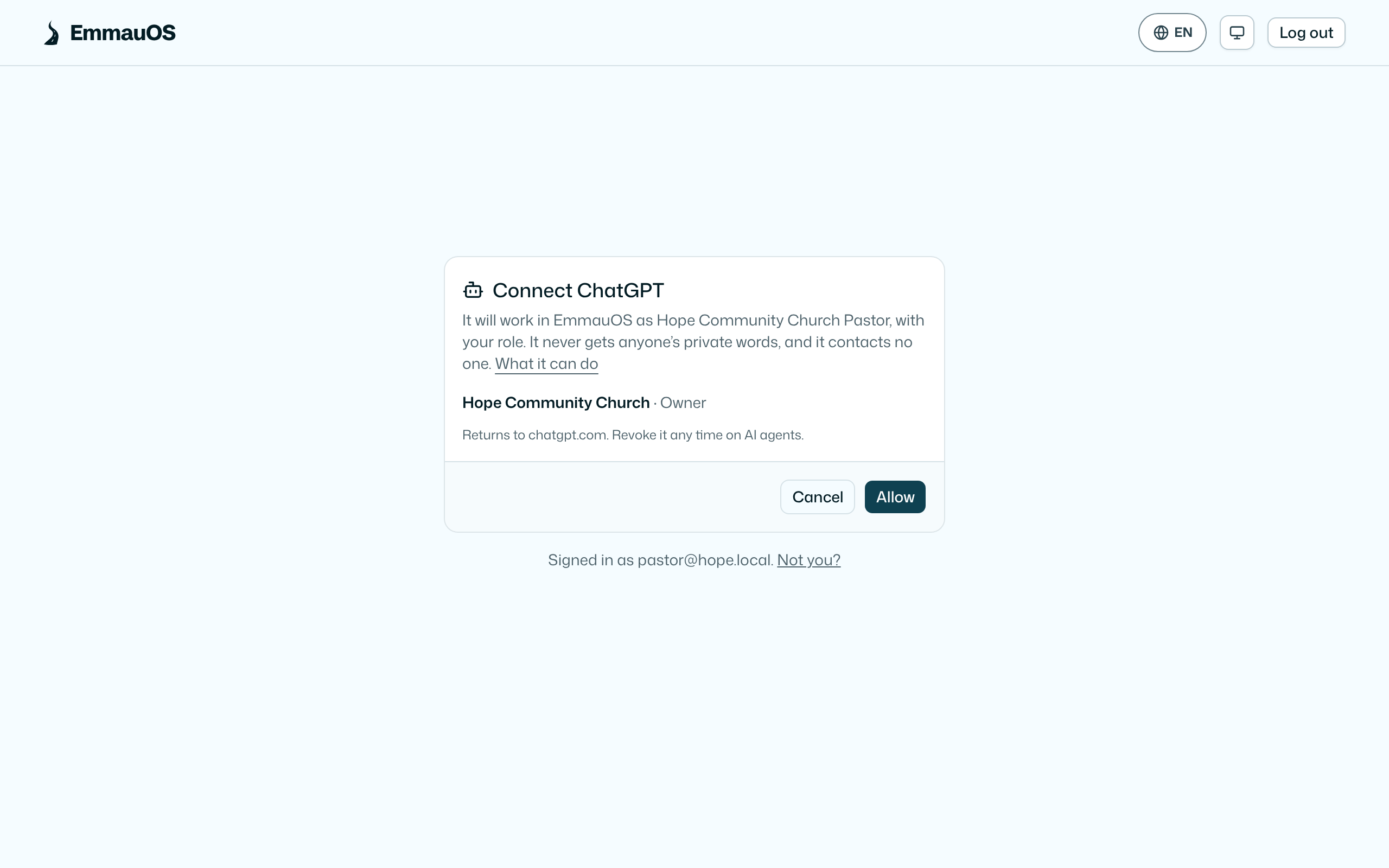
If you belong to more than one church, pick one. The connection works as you, with your role in that church. It appears on AI agents as (signed in), where you can revoke it any time. It renews itself while you use it and ends after 90 days without use. Signed in as the wrong person? Press Not you? to sign in as someone else and come back to the same screen.
An assistant that can't sign in can still use a token you make on AI agents.
What it will and won't do
It asks before it saves, and shows you what it will save. It can do anything your role could do on the setup screens, and no more. Like every agent it never sees a person's private words, never contacts anyone, and never writes to Planning Center. Staff invitations and discipleship pairs both send email, so it only fills them in: invitations wait on Team marked not sent yet until you press Send, and pairs open filled in on Walking with until you press Ask them. Adding pairs by AI needs your owner to let agents see walks, on Walking with settings. See what an agent never gets.
Finishing in your AI and finishing on the screens are the same: each step saves to the same place, and get-setup tells the assistant what is still left.
Try it on your own church
Your assessment link works the minute you sign up. The first 50 people are free, and there is no card to enter.
This page as Markdown, for notes or an AI assistant.