Documentation · Getting started
The Overview
The first screen after sign-in, a Monday picture of discipleship in your church: a short brief, three questions, vital signs, the path, where people want to grow, follow-through, season goals and ministries.
For: Everyone on the team
See this screen in the demo church
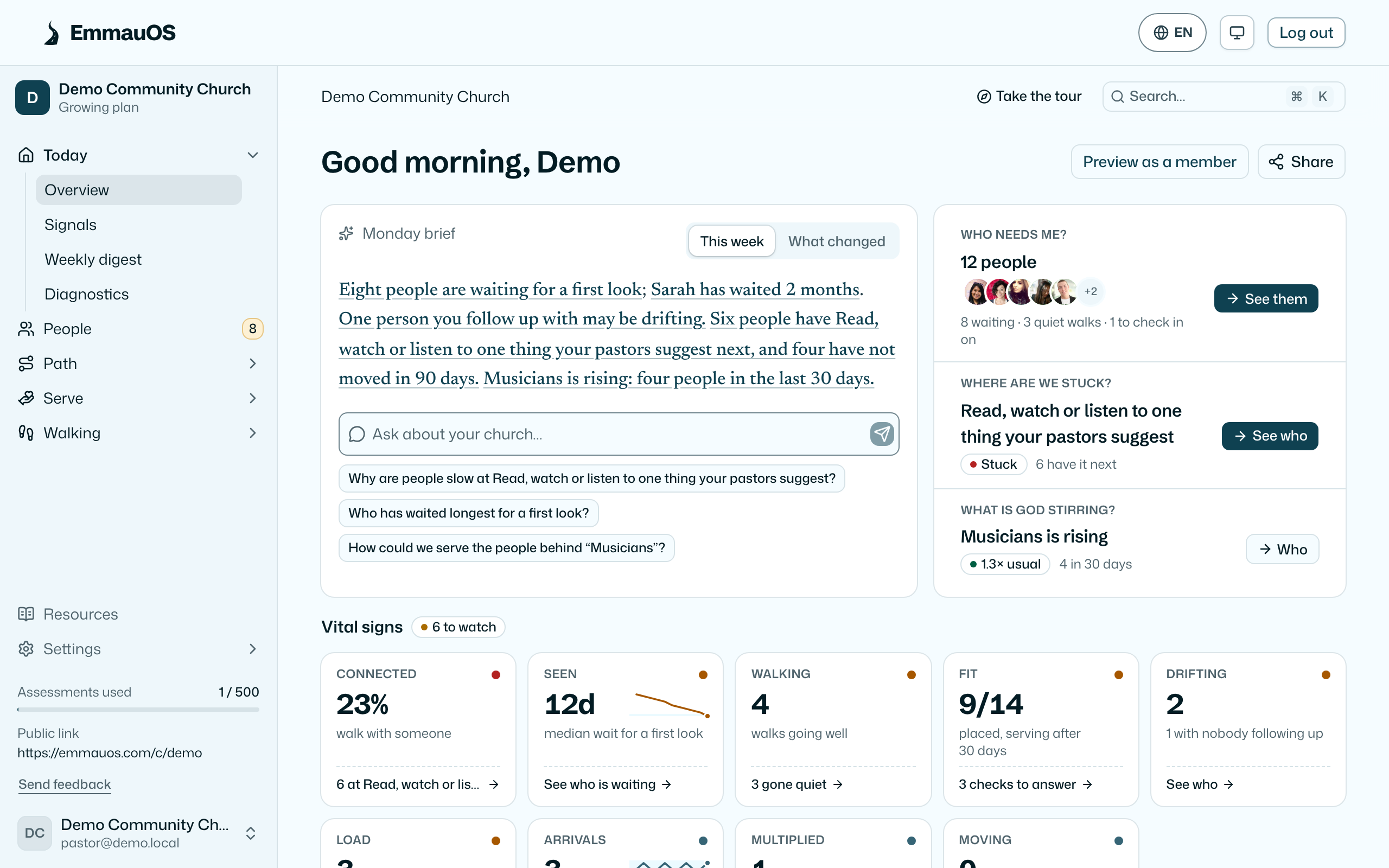
The Overview reads everything EmmauOS knows, and Planning Center when it is connected, and puts it in one order: a few sentences, three questions, the numbers that matter, then the detail. Each part links to the people or the screen behind it.
The brief
A few plain sentences about the week just gone: how many people are waiting for a first look and who has waited longest, the step on your pathway where people are piling up, and any gift or kind of person that is rising. Each underlined phrase opens what it names. The sentences are written from your data by fixed rules, not by AI, and the sources are listed when you hover the heading.
Switch the brief to What changed to read the last 7 days against the 7 before, and to see each vital sign's change.
Pastors and up can Ask a question below the brief, or tap one of the suggested questions. It opens Ask AI with the question filled in.
Three questions
- Who needs me? People waiting for a first look, for pastors walks that have gone quiet, and the people you follow up with who may be drifting or carrying a lot. See them opens the list.
- Where are we stuck? The step on your pathway where the most people are waiting, whether it is slowing or stuck, and how many there have not moved in 90 days. See who opens the people at that step.
- What is God stirring? The signal rising most against its usual, with how many people in how many days.
On a phone the three questions come first.
Vital signs
Up to nine small readings, each against a normal range, with the ones out of range first:
- Arrivals: results this week, against half to one and a half times your usual week.
- Seen: the median wait for a first look over the last 30 days. Within 7 days is normal.
- Walking: walks going well (pastors, when walking with is on).
- Connected: the share of people past the first stage who are in a Planning Center group or walking with someone.
- Fit: of the people placed more than 30 days ago, how many are still serving.
- Drifting: people who have gone quiet with nothing holding them, and how many have nobody following up. See Drifting and carrying a lot.
- Load: people carrying a lot: serving in 3 or more places, or nearly every week on a Planning Center team.
- Multiplied: groups and teams an apprentice started in the last 12 months, with how many leaders have no apprentice yet. At the last handover step an apprentice counts as ready to launch, and the link says how many.
- Moving: people who moved to a new stage of your pathway this week.
Each reading names its state in a word (Normal, Watch, Low, High) and links to the screen that would change it. A reading EmmauOS cannot work out yet is left off rather than shown as zero.
The path
Your pathway's stages as a river: its width at each stage is how many people are there now, and a marked pool shows the step where people are gathering. Below it, each crossing says how many people have the next step ahead of them, with See who. On a narrow screen the river becomes a list of stages with bars. When your pathway has more than one track, the switch above the picture shows another track's stages; it opens on your main track.
Staff who may see names can switch to Whole church: one dot for each person, in the ring for their stage on the track you chose, the first stage outermost. Someone not started on a track sits in its first ring. Dots are grouped by state: needs a first look, on the path, and for pastors, walking well, gone quiet or nobody beside them yet. The picture is there to show where each person is, so every dot is someone you can find: hover a dot for their name and face, and click it to open their page. On a phone, tap once for the name and again to open.
- Show only a state by clicking it in the legend. The other dots fade.
- Filter by age, gender or time in church. These come from Planning Center: the birth year (never the birthday), the gender on the profile, and the month the person was added, which is the nearest record of when they came. Anyone without that detail is left out of a filter and counted as "not on file". However few people a filter leaves, each one still shows.
- Open a stage by clicking its ring or its row. The stage fills the circle with a ring for each age band in it.
- See the names. Once you show only a state, open a stage or filter, the people shown are listed beside the picture, up to 60 at a time.
- In a church of more than 2,000 people, each dot stands for a few people, counted by stage and state, and the counts read as approximate. Dots then carry no names; the See who buttons under the river open the people at each step.
Where people want to grow
For pastors and up: each growth area people picked, and each Spirit gift people are hungry for, with how many people and what you offer for it (classes, events, Planning Center groups, things to read). Each is marked Gap, Only reading, Stretched or Offered, with See who and, where something is missing, Add a class. It loads a moment after the rest of the page. Where people want to grow explains the rules.
Groups to launch
For pastors and up, once Planning Center is connected: how many people are in no group, how many an open group near them already fits (Ready to invite), and the life stages and towns where nothing near fits. Each row is marked No group like it or Full, with See who. Group finder explains the rules.
Follow-through
Five columns for results: new, reviewed, followed up, placed and serving, each with a count, the median days people spend there and a few faces. The slowest of the first three steps is marked. Each column opens the people in it.
Season goals
Up to three goals for a season you name, with an end date, each tracked against everyone it counts:
- Everyone past the first stage walks with someone (when walking with is on).
- Everyone past the first stage is in a group (when Planning Center is connected).
- Every new result gets a first look within a week.
Each goal says whether it is on pace for the end date, and links to the next step when it is behind. Pastors, admins and owners set or clear goals with Set goals or Edit; the day the season began is kept when you edit. Everyone on the team sees them.
Ministries
One card for each ministry, colored by how it is doing, with how many more people it needs and how many could fit. Mine narrows it to the ministries you lead. It loads a moment after the rest of the page. Where we need people has the full picture.
Preview as a member, and Share
Two buttons in the corner. Preview as a member opens your public page as a visitor would see it. Share gives you the link, a QR code in your church's color with your logo in the middle (download it as PNG or SVG for the bulletin, a slide or a poster; a phone camera opens your assessment), and the website snippet (Sharing the assessment).
The setup checklist
Until your church is set up, the Overview keeps a short checklist at the top: brand, serving teams, ministries, Planning Center, team. Each step links to the screen that finishes it. It goes away on its own.
Who sees what
- Everyone on the team sees the Overview. A viewer sees the counts, the readings and the path, but no names or faces, and not the Whole church picture.
- Leaders and up see names and faces, including who each Whole church dot is. Because that picture names people, think before you show it on a shared screen. Walk states (going well, gone quiet) are for pastors, admins and owners only, as on walking with.
- Where people want to grow is for pastors, admins and owners, and is counts only.
- Only pastors, admins and owners set season goals. Goals can't be changed in the demo church.
- Giving is never read on the Overview. No person gets a score, and gifts are never ranked.
- Nothing on the Overview contacts anyone. Every button opens a screen in EmmauOS.
- Groups to launch is for pastors, admins and owners, and is counts only.
Try it on your own church
Your assessment link works the minute you sign up. The first 50 people are free, and there is no card to enter.
This page as Markdown, for notes or an AI assistant.