Documentation · Getting started
Start here
What EmmauOS is, what happens in your first fifteen minutes, and the one moment that shows you what it is for.
For: Everyone on the team
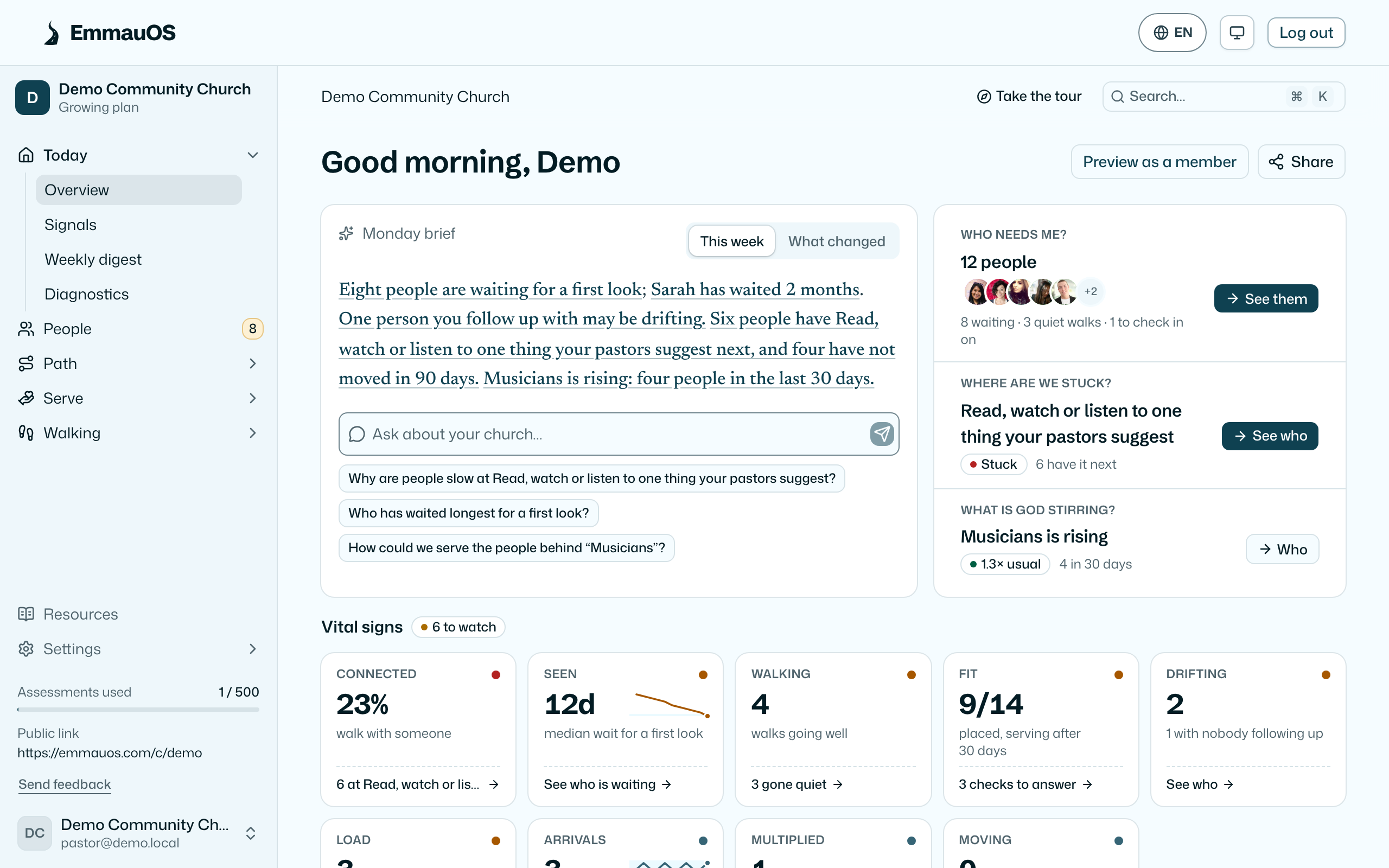
See this screen in the demo church
EmmauOS is a spiritual gifts assessment your church puts on its website or in the bulletin, and a follow-up list for the people on your team who help members find a place to serve.
A member answers on their phone in 10 to 15 minutes. They see their gifts in bands, with the margin of error drawn honestly, and the serving teams at your church that need those gifts. You see everyone who finished, what they wrote, whether they agreed to be contacted, and who on your team is walking with them.
Your first fifteen minutes
- Create your church. Your assessment link works the moment you click create. Nothing to install.
- Add your look. Your church's name, accent color and a welcome line. If you give EmmauOS your website address it pulls the colors and logo for you, and looks for your ministries while it is there.
- Say how your church talks about gifts. EmmauOS suggests a tradition from your website and you confirm it. It changes headings, never the scoring.
- Connect Planning Center, or skip it. One sign-in. You can come back to this anytime.
- Add an AI key, or skip it. It runs Ask AI and the staff-only briefs, and drafts your pathway in the next step. EmmauOS never supplies the AI.
- Put in your own pathway. Say in a paragraph what someone actually does between their first Sunday and leading something, and your AI key drafts it into stages and steps. Without a key, rename the starter. Then name your tracks in your words, such as "Connect, Grow, Go".
- Add the one role you talk about most, such as small group leader, from a starter or in your own words, with how many you need.
- Share the link, and set a weekly rhythm. Put the link in Sunday's bulletin, on your website, or in an email. Then choose the day and hour of the staff meeting you already have, and the weekly digest lands just before it.
Steps 6 to 8 are Applying Pipelines to your church in a few minutes. Every step can be skipped and finished later.
The Overview keeps this checklist in front of you until it is done, and a tour on your first login walks the whole workspace in order: the Overview, one real result and what to do with it, then People, Ask AI, Tracks, Roles, Ministries, Signals, Resources and Settings, as far as your role can see. Where your church has Walking with, pastors also see it, Generations, the Map, the Web, Circles, Stories and Diagnostics, and admins its settings and the Pathway editor. Take it again from the sidebar.
The moment it earns its place
Someone finishes the assessment and lands in Needs a first look on the Overview. Open their result: their gifts in bands, what they wrote about the kind of helping that makes them come alive, whether you may contact them, and the teams at your church that fit. That takes about a minute, and it is the whole product in miniature: a real person, a real conversation to have, and a real place to point them.
Everything else in EmmauOS exists to make that moment happen more often and get lost less: the weekly digest that says who is waiting, the ministries page that says where you need people, the placements list that asks whether it took.
When you're ready for more
Once results are coming in, a few pages show the whole church. Tracks puts your tracks side by side, Belong, Become and Lead to start, so you see where people are stuck. Roles names the places you need people, such as small group leaders, shows who is close, and who is learning each role as an apprentice. Neither needs setting up to start: Tracks reads your pathway, and a role can start from a starter. With Walking with on, Generations shows whether the people you walk with now walk with others.
Who this documentation is for
Each page says near the top who sees the screen it describes. A viewer sees counts; a leader follows up with people; a pastor also shapes ministries, signals and resources; an admin sets everything up; the owner holds the account. If you're a member who took the assessment, the pages under For the people who take it are yours.
If something is wrong
Every admin screen has Send feedback in the corner: a feature request, a bug report (it attaches the page you were on), or a thought. A person reads every one. For anything about your data, write to the address on the privacy page.
Try it on your own church
Your assessment link works the minute you sign up. The first 50 people are free, and there is no card to enter.
This page as Markdown, for notes or an AI assistant.