Documentation · Settings, plan and data
Settings
Every switch in one place: your address and brand, what members are asked, how long results are kept, embedding, integrations, and the plan.
For: AdminOwner
See this screen in the demo church
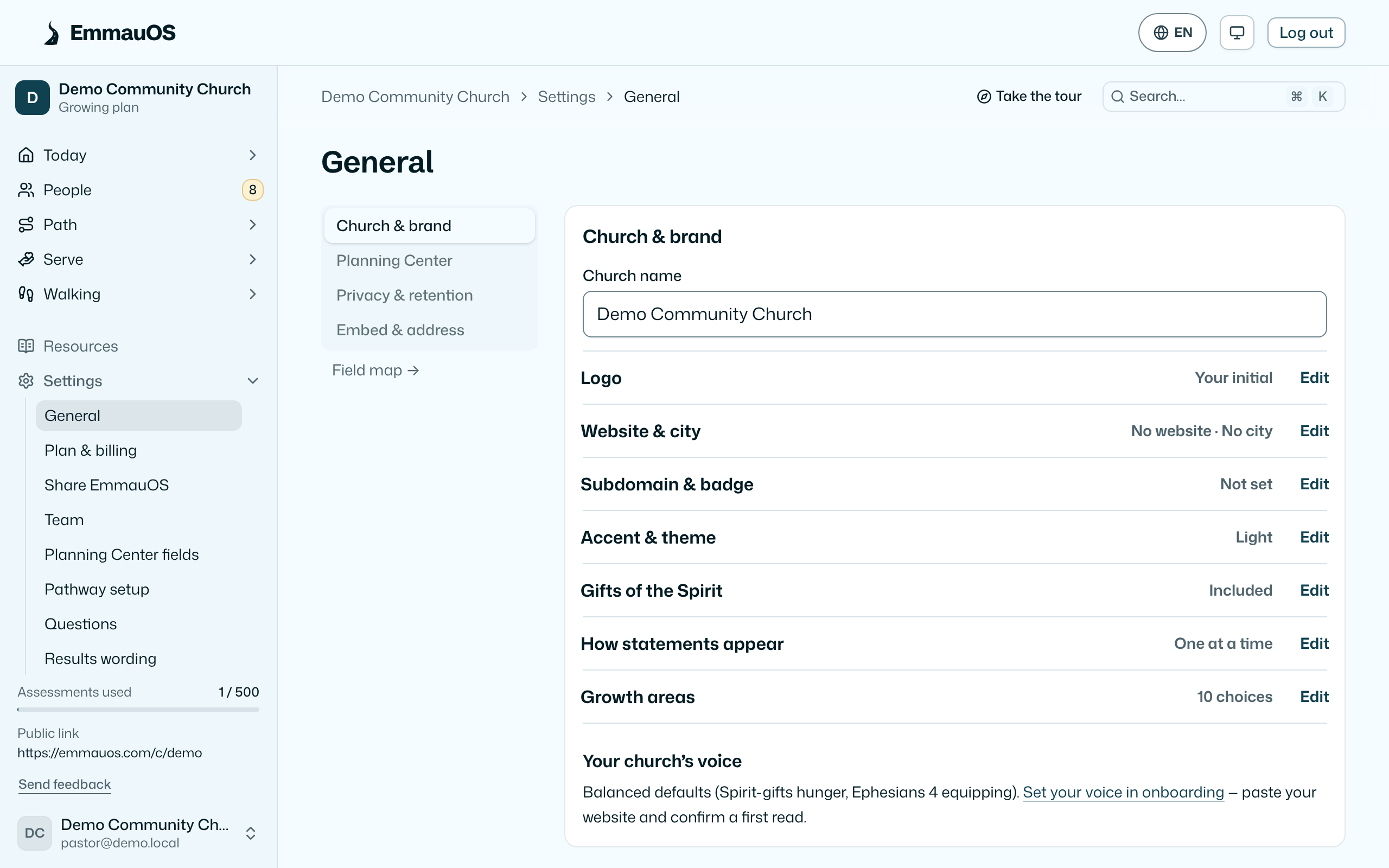
General
Your church's address on the web: the slug in emmauos.com/c/your-church, and from the Small plan your own subdomain. Change the slug and the old one keeps working for a while so printed bulletins don't break.
Church & brand
Name, city, website, logo, accent color, light or dark theme, and a voice note: a sentence about how your church talks, used in the result wording and in AI briefs. Pull from website fills these from your site and finds ministries (Your website and the embed).
The logo sits at the top of your sidebar, on your assessment pages and in the emails EmmauOS sends for you. Upload a square mark and crop it, or show a wide logo whole. Without one, EmmauOS uses the logo from your website, then your initial.
Growth areas is the list of choices people see for What would you love to grow in right now? on the last screen of the assessment: one per line, up to twelve, or empty for the defaults. Resources tagged with a matching topic are offered to the people who pick an area.
Share EmmauOS is its own tab: your referral link, and how you would like to be thanked when another church pays. See Share EmmauOS.
Privacy & retention
- Auto-erase after: results older than this (one to 10 years, or never) are erased, scores and words both, leaving only the band names for the charts. Members are told the period on the assessment.
- Ask age: whether to ask people if they are under 18, so EmmauOS can treat them with extra care (What EmmauOS never does).
- Ask to agree for Planning Center: a separate box a person must check before anything about them is written there.
- Join the across-churches comparison: contributes band names only, as percentages, once your church has enough results.
Embed anywhere
The hosted link, the website snippet and your subdomain (Sharing the assessment).
Planning Center and AI agents
Planning Center connection shows whether you are connected and lets an admin reconnect. What maps to which field is Settings → Planning Center fields, and Settings → AI agents has its own page. The AI key is set in the AI step of Getting started. See Planning Center, AI briefs, Ask AI, AI agents.
Plan & billing
The plan, how many of this year's assessments are used, and the link to pay (Plan and billing). Owner only.
Danger
Hand ownership to another admin. Delete the church, which erases everything, including backups within 30 days, and can't be undone. Owner only, with the church's name typed to confirm.
Try it on your own church
Your assessment link works the minute you sign up. The first 50 people are free, and there is no card to enter.
This page as Markdown, for notes or an AI assistant.